

5.0
(85+ reviews)
Shopify Quick View
Preview products, pick variants, and add to cart right from the collection page.
* Quick View is a feature of the Collection Hover Image Slider app
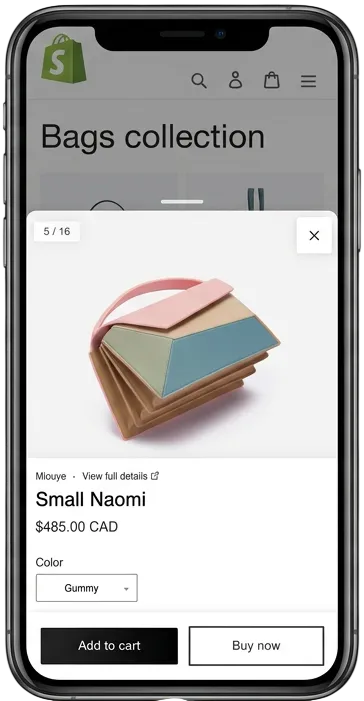
See the full product without leaving the page
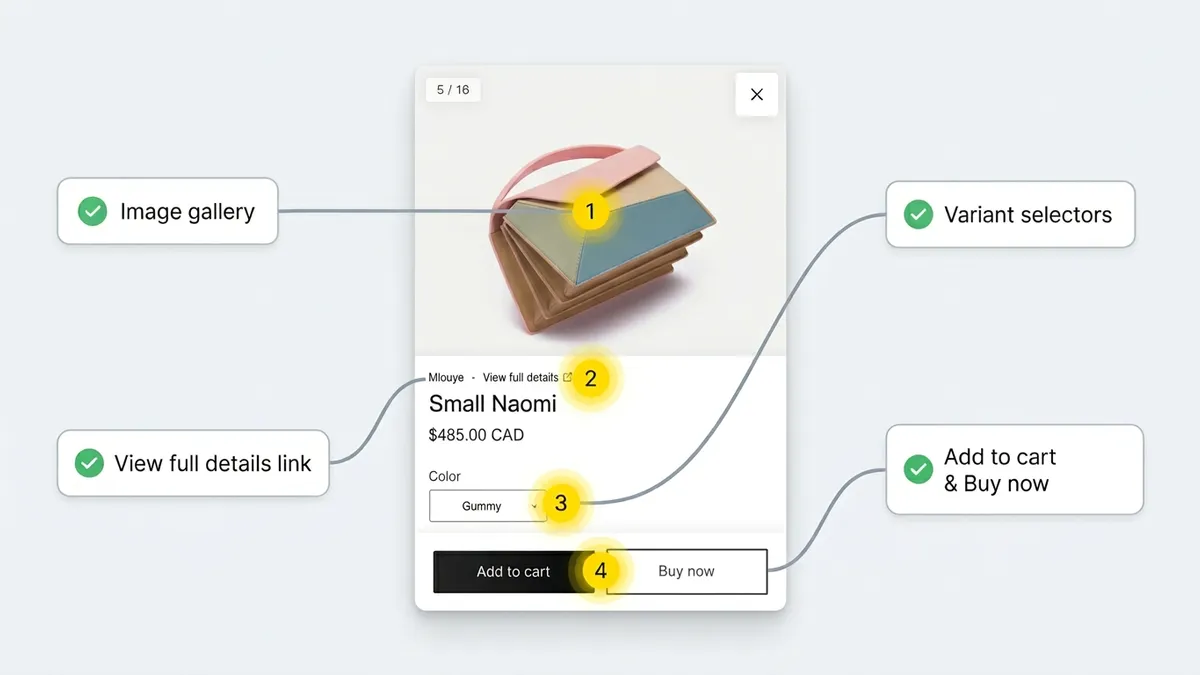
On most Shopify stores, browsing means clicking into a product, checking the details, hitting back, and doing it again for the next one. A Shopify collection quick view skips all of that. It opens a popup right on the collection page with the product gallery, pricing, variants, and an Add to Cart button.
Customers can browse images, pick a size or color, and add to cart without a single page reload. It’s basically a Shopify quick shop experience built into your collection page. Close the popup and they’re right back where they were, scrolling through the collection.
Designed for mobile first
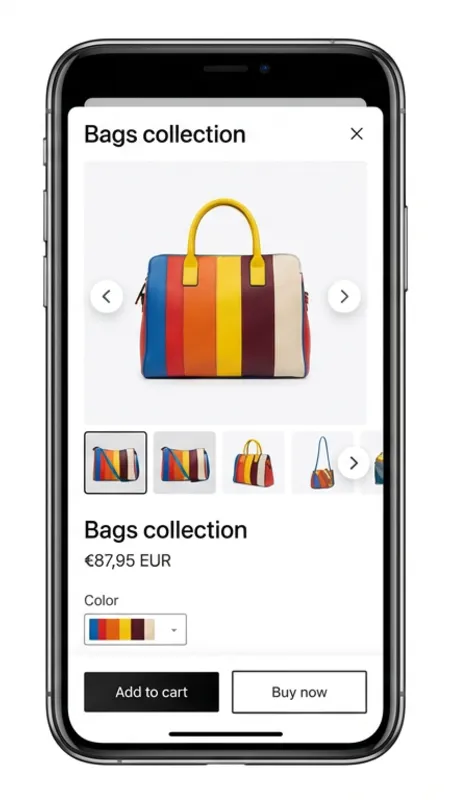
Most of your customers are shopping on their phones. Quick View was built around that. The popup slides up from the bottom as a full-width sheet, with the gallery at the top, product details below, and the Add to Cart button fixed at the bottom where your thumb already is.
Swipe through product images. Swipe the popup down to close it. Everything is sized for touch, no tiny buttons to hunt for. The gallery handles different image sizes and aspect ratios, so it looks right no matter what media your products use.
Since hover doesn’t exist on phones, the app handles that automatically. No phantom highlights or stuck states. The Quick View button uses tap instead, so it’s always one tap away.
Pick colors and sizes right in the popup
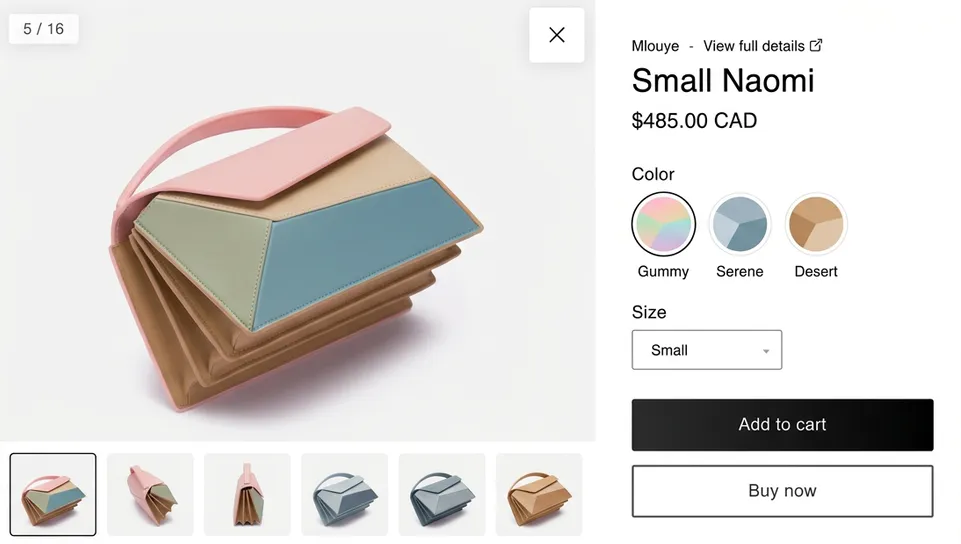
Customers can select variants inside the Quick View popup without going to the product page. Colors show as visual swatches, and options with more values (like sizes) appear as dropdowns. When they pick a color, the gallery updates to show images for that variant.
Sold-out options are grayed out and labeled, so nobody wastes time selecting something that’s unavailable. The remaining options update in real time based on what’s actually in stock. The popup picks the first available variant by default.
Make it look like your store
You can change how the Quick View button and popup look and behave, all from the app dashboard. No code involved.
-
Button Position
Put the Quick View eye icon in any corner of the product card image. Top left, top right, bottom left, or bottom right.
-
After Add to Cart
The popup can close automatically after adding to cart, or stay open so the customer keeps browsing. You can also trigger the cart drawer instead.
-
Custom Icon
Swap the default eye icon for your own SVG. Use whatever fits your store.
-
Color Theme
Pick light or dark mode for the popup. Set primary, background, and accent colors to match your store.
-
Border Style
Round or sharp corners on the popup and buttons. Set the border radius to match the rest of your design.
-
Show or Hide Sections
Turn product description, ratings, quantity selector, Buy Now button, and brand name on or off individually.
What merchants are saying
Amazing app, easy to configure, and quick responses from the support team. The app was not working correctly for me on mobile on initial download, but the support team was able to help me with a solution within an hour. Thank you!
Definitely recommend the app. Works great, and their support team were quick to provide us with some additional effects and fixes, and were quick and happy to act on feedback and feature requests.
This app is a game-changer for my e-commerce store! Thanks to GG Quick View & Hover Slider, my customers can preview products without leaving the page, making navigation smoother and enhancing the overall user experience. The interface is intuitive, easy to set up, and integrates seamlessly with my Shopify store.
Great app. Let's site visitors flick through product photos from the homepage. Also got the slider installed on the product pages themselves. Got great support by email and very quick to help with solutions. Friendly and helpful.
* All reviews are verified and visible on the Shopify App Store.
Set it up in three steps
Install the app, flip a switch, and Quick View is live on your collection pages. No coding needed.
- Install from the Shopify App Store: Add the Collection Hover Image Slider app from the Shopify App Store. Quick View comes with the PRO plan.
- Activate in App Embeds: Go to Online Store > Themes > Customize in your Shopify admin. Open App Embeds and toggle on the Hover Image Slider. That activates it on your live theme.
- Turn on Quick View and customize: Open the app dashboard and enable Quick View. Pick your button position, icon, colors, and which product details show up in the popup. Changes go live right away.
One dashboard for everything
Quick View settings are in the same dashboard as the rest of the app. Toggle things on and off, pick your colors, and preview changes before they go live. The dashboard is available on the free plan too, so you can look around before subscribing.
Frequently asked questions
- What is quick view on Shopify?
- Quick view is a popup that shows product details (images, pricing, variants, and an Add to Cart button) right on the collection page. Instead of clicking into each product and waiting for a new page to load, customers get everything in one popup. It makes browsing faster and comparing products easier.
- How do I change the quick view on Shopify?
- Open the Quick View settings in the Collection Hover Image Slider app dashboard. From there you can change the button position, replace the icon with a custom SVG, pick light or dark mode, adjust the border radius, and choose which details appear in the popup (description, ratings, quantity selector, Buy Now button, brand name). Changes preview live in the dashboard.
- How to add quick view in Shopify without apps?
- It's possible by editing your theme's Liquid templates and writing custom JavaScript. That said, it takes coding knowledge, theme-specific adjustments, and you'll need to maintain it every time your theme updates. A Shopify quick view app like Collection Hover Image Slider does all of this for you with no code changes, works with any Online Store 2.0 theme, and stays updated automatically.
- Does Quick View work with my Shopify theme?
- Yes. Quick View works with all Shopify Online Store 2.0 themes through App Embeds. The app detects your active theme and adjusts automatically. It also works with popular cart systems like Dawn's built-in cart drawer, SlideCartHQ, and MonsterCart. If you run into something unusual, the support team can help.
- Can I use Quick View together with the Product Page Slider?
- Yes, and a lot of stores do. Quick View works on the collection page so customers can preview without clicking in, and the Product Page Slider upgrades the gallery on the product page itself. Different surfaces, no overlap.
- What else should I look at to improve my product pages overall?
- Quick View covers the collection page side, so customers can preview and add to cart without clicking through. The product page itself is a separate piece, with its own set of best practices around variant images, photography, copy, and CTA placement. The Shopify product page optimization guide walks through those.