
Getting Started - Shopify Product Page Slider
Welcome to this comprehensive guide on how to enhance your Shopify product page with a better product gallery. In this tutorial, we’ll walk you through the process of setting up a Shopify product page, installing and configuring the Gallery app, and troubleshooting potential issues.
Setting Up a Basic Shopify Product Page
Let’s begin by setting up a basic Shopify product page. For this example, we’re using the latest Dawn theme. To create a simple product, follow these steps:
- Navigate to the product settings.
- Create a product with multiple images and variants defined.
- Ensure each variant has a proper image assigned to it.
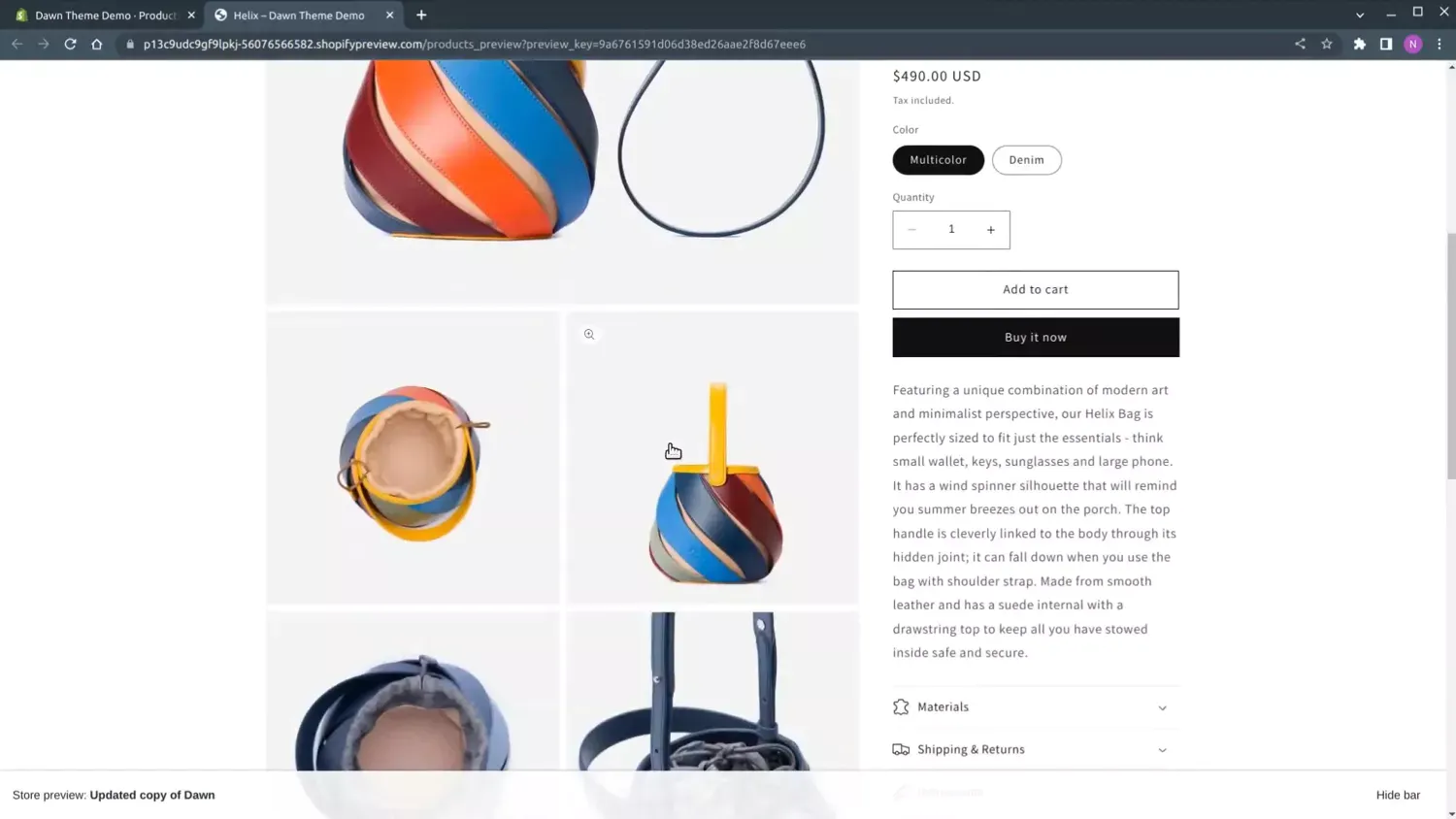
By default, the theme gallery for your product will display a simple grid of images. While this may work for some, it’s not always the most effective way to showcase your products.
Installing the Product Page Gallery App
To improve your product page, we recommend installing the Product Page Gallery app from the Shopify App Store.
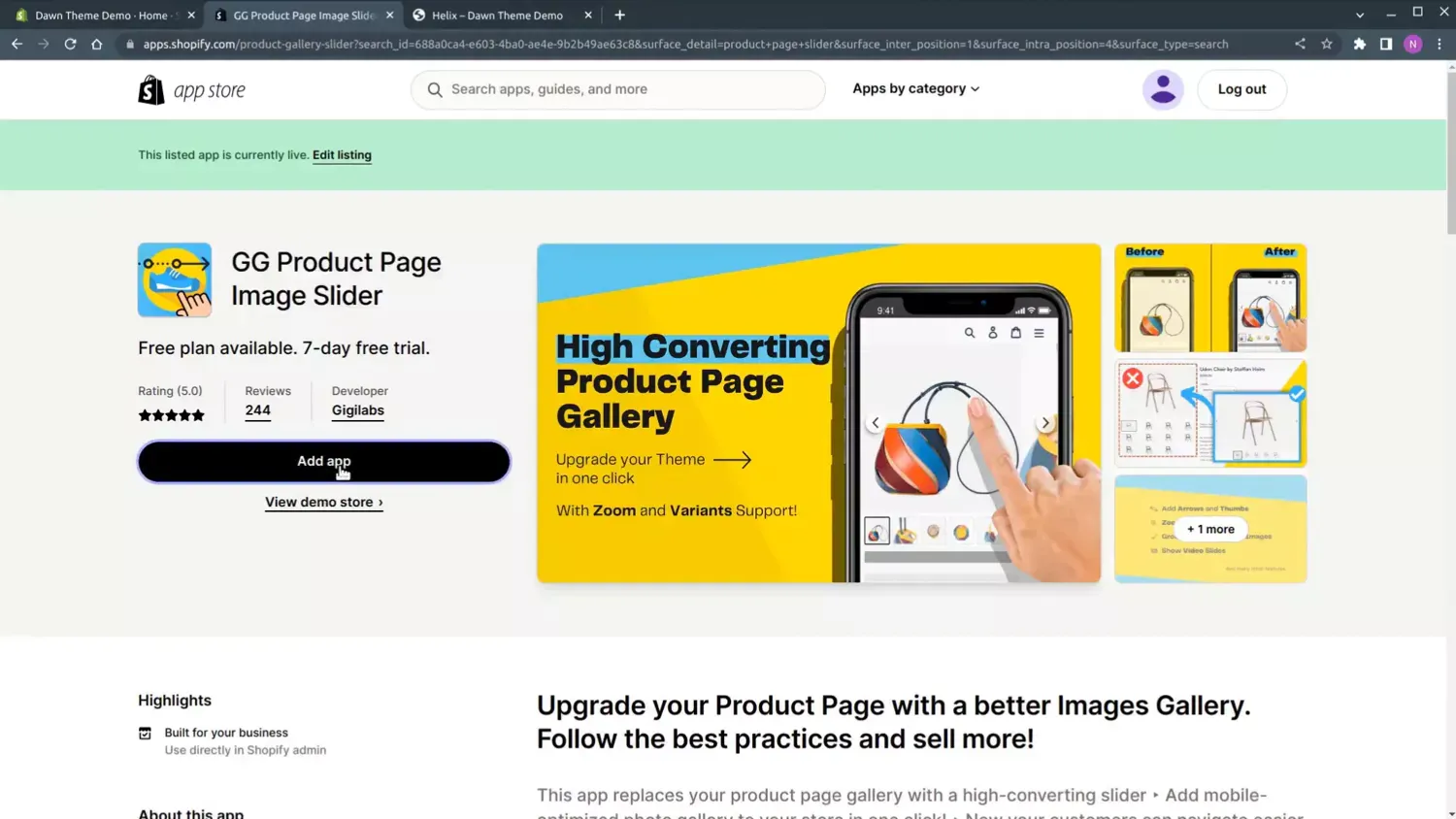
To install the app:
- Click “Add App” and accept the installation.
- Go to the configuration page and select the basic plan.
- Click “Enable App” and wait a few seconds.
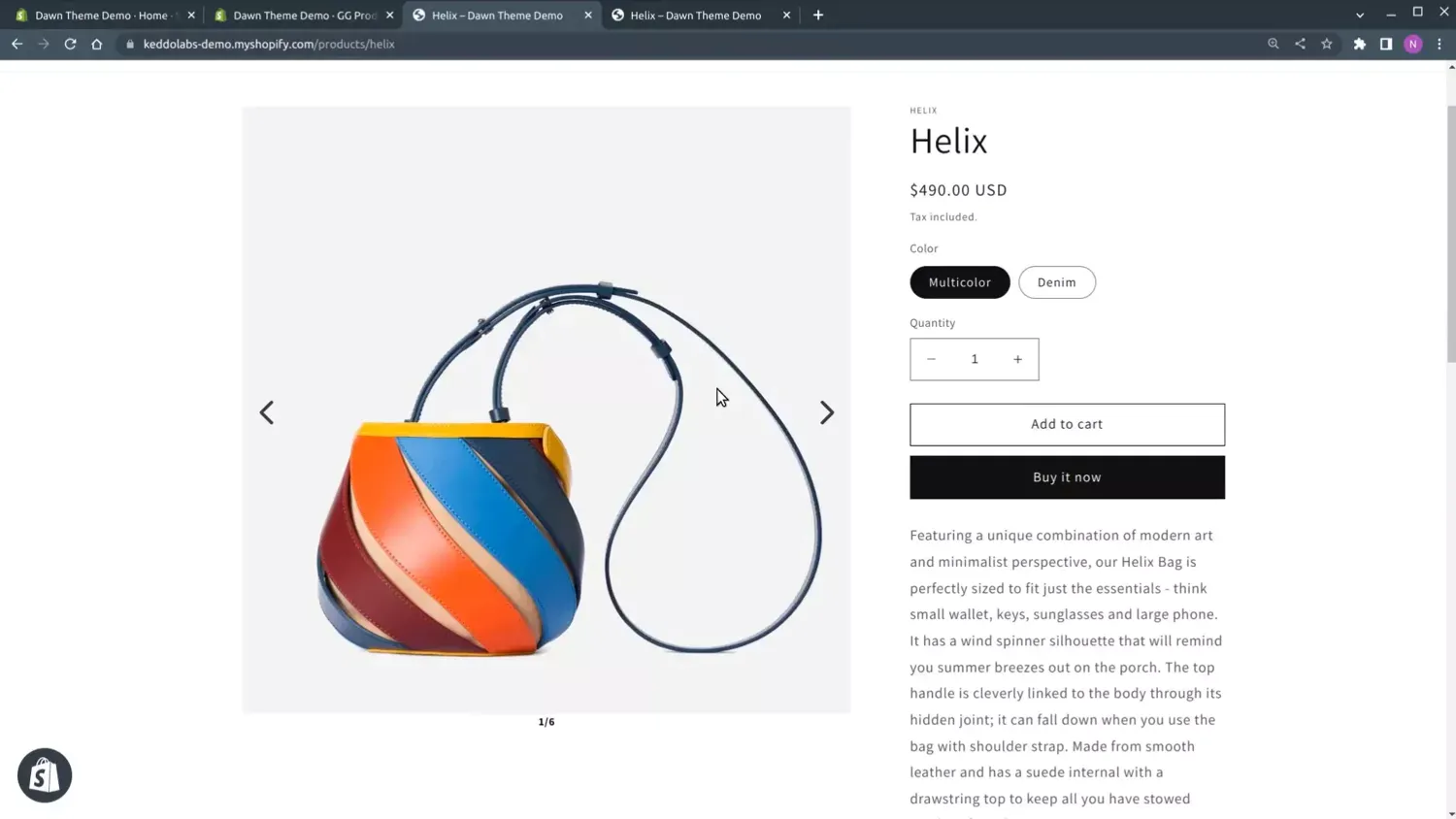
After the app is installed, make sure it’s properly applied to your theme by checking your storefront and navigating to the product page. You should notice that the default gallery has been replaced with the new slider, allowing customers to click on arrows or swipe on their phones to change slides.
Upgrading to the Pro Plan
For more advanced features, you can upgrade to the Pro plan. Follow these steps to upgrade and enable the Pro plan:
- Select the “Slider with Configuration Options”.
- Click “Upgrade,” approve the charge, and wait a moment.
- Once approved, click “Apply the PRO options”.
In addition to the basic features, the Pro plan allows adding thumbnails, changing the colors, and many other features that you might need for your Product Page Gallery.
Configuring the Product Page Gallery App
Once installed, you can explore various options to customize the gallery to your liking. Some of the available options include:
- Full Width Option: Reveal nearby slides to give your gallery a wider appearance.
- Thumbnails Position (Desktop Only): Choose whether to show the thumbnails on the left or bottom side of the image.
- Bullets Customization: Change the look and feel of image thumbnails. For instance, the adaptive option keeps the aspect ratio of the image, while basic thumbnails remain square.
- Arrow Styles: Choose from four different arrow types and customize their colors.
- Zoom Configuration: Enable zoom on click for customers to view images full screen, or zoom on hover for quick desktop zooming capabilities.
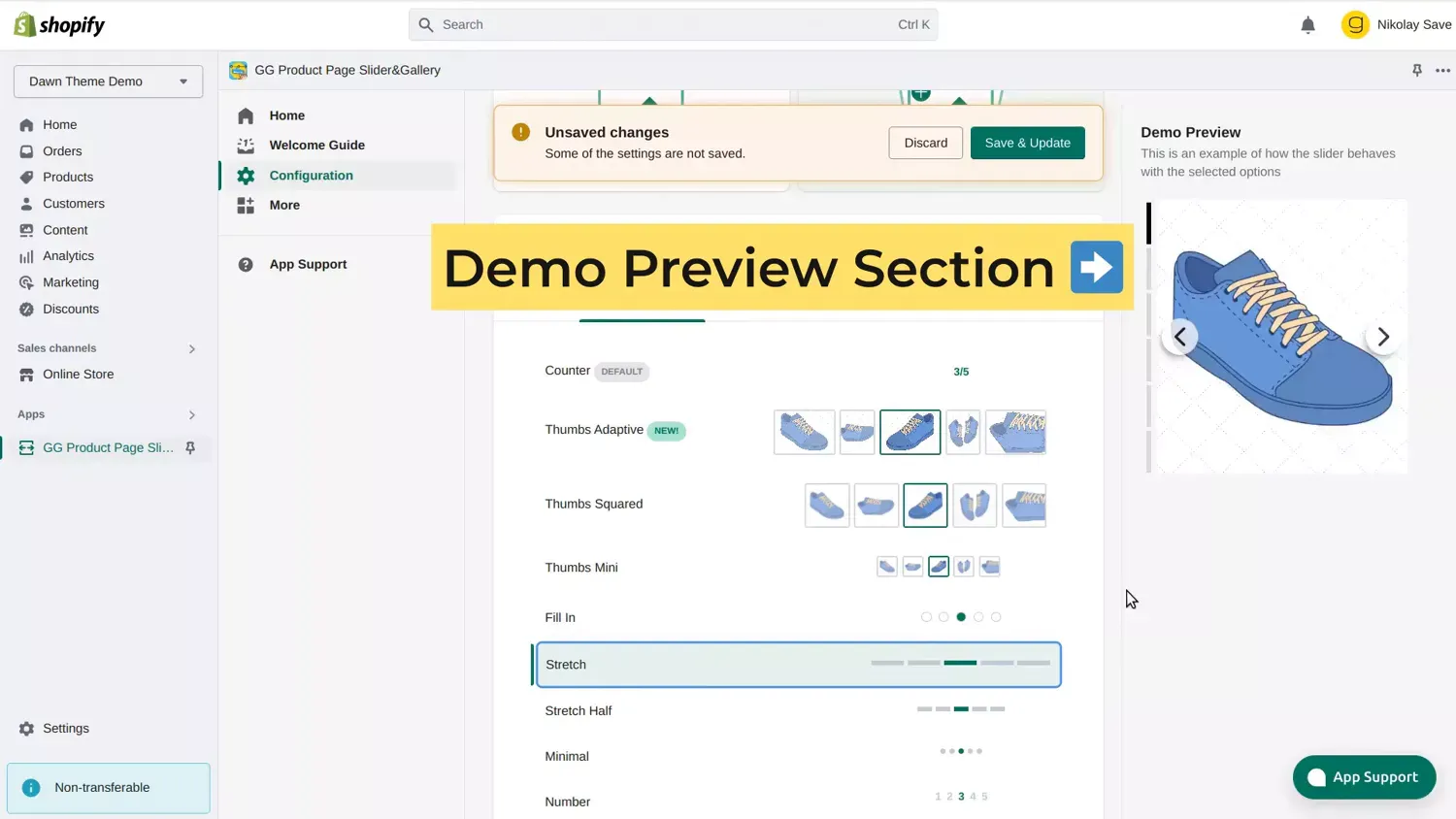
You can test these options and see their effect through the right demo preview section, which also includes color customization options.
Advanced Settings and Video Configuration
The advanced settings tab provides additional configuration options but requires a bit of setup, which we’ll cover in a future tutorial. In the meantime, the last tab in the app allows you to disable videos from the slider by un-checking the option, or enable playing videos in a popup.
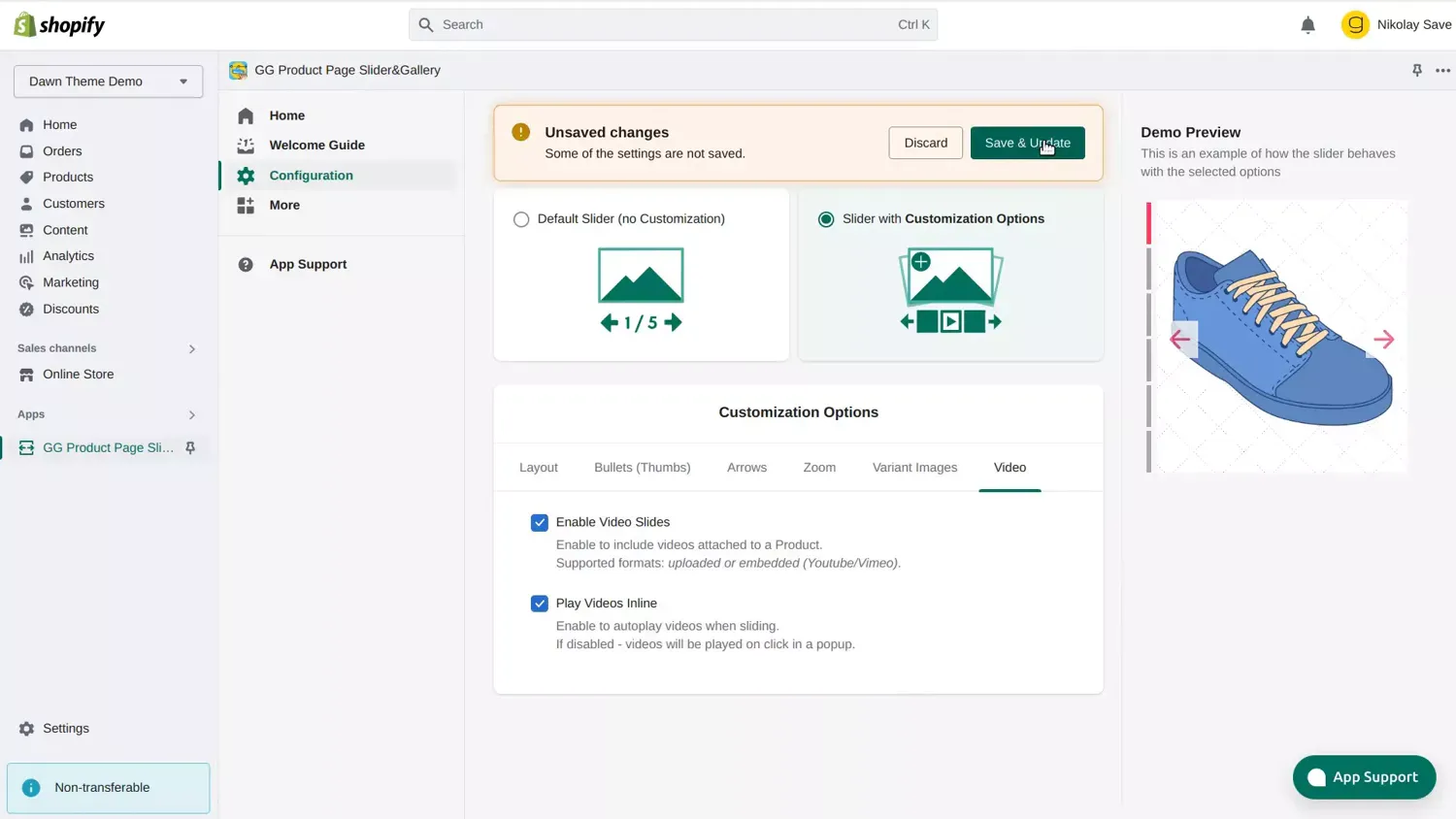
Don’t forget to apply your selected options to see the effect on your storefront!
Troubleshooting
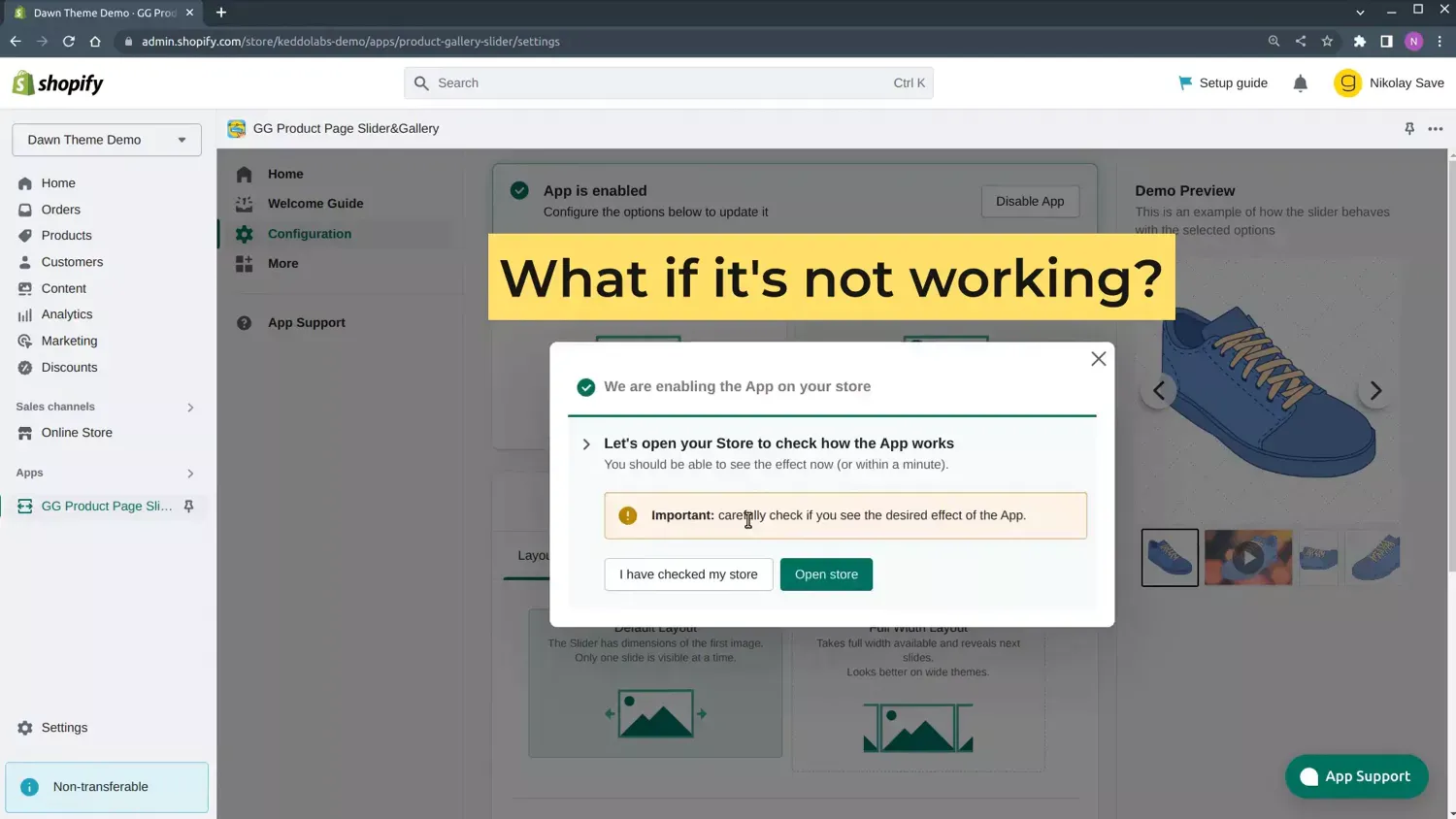
Occasionally, the app may not work as expected right after enabling it. If this happens, try waiting a few seconds and reloading the page. If it still doesn’t work, click “Get Help”, and the support team will be notified of your issue. They will check your store, and you can expect to hear back from them the same workday.
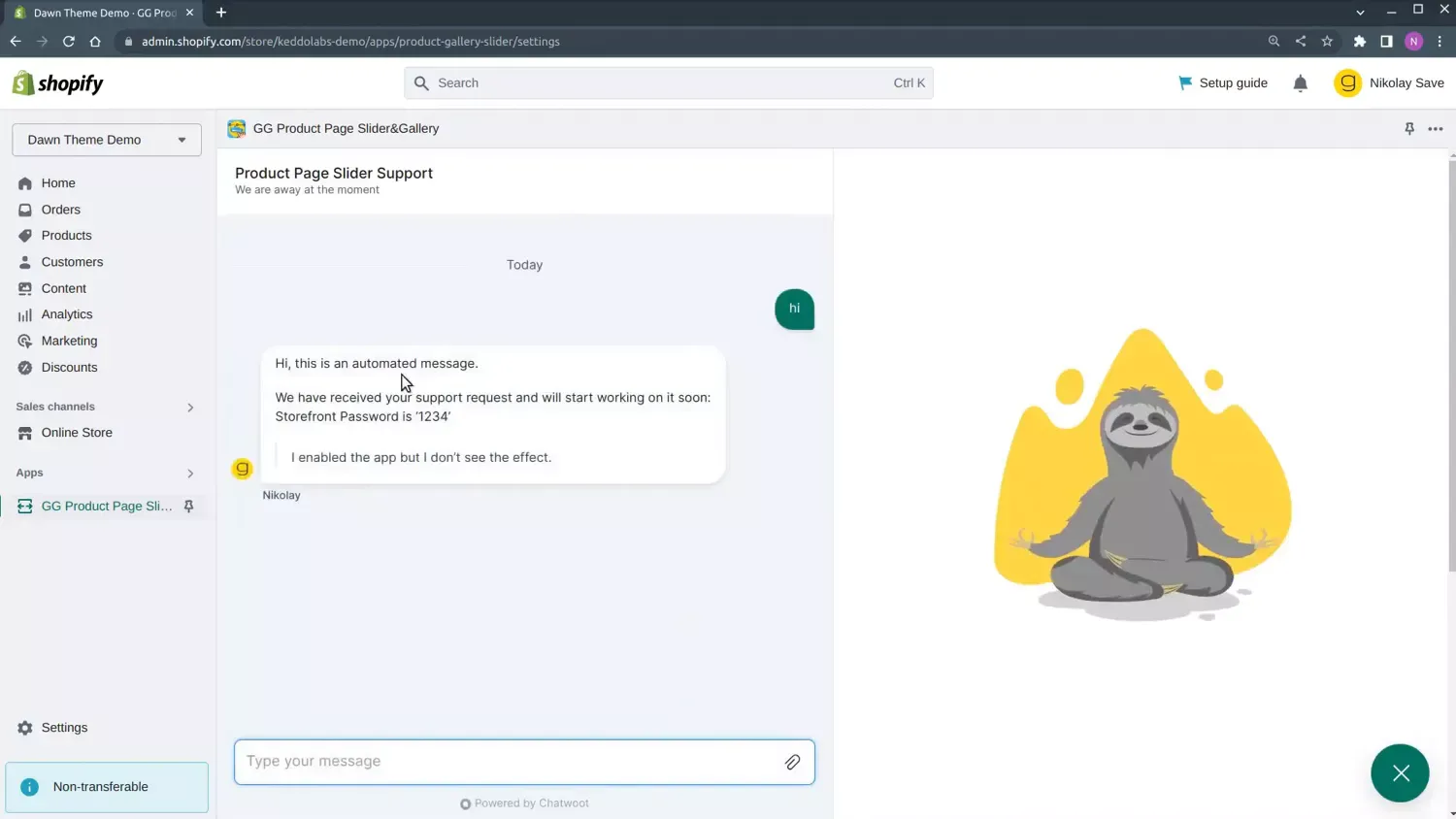
The support chat feature allows you to send messages or review replies from the support team.
What’s next?
- Show only selected variant images for products with multiple variants
- Customize the gallery look with CSS to match your store’s design
- Add product images and video to the slider
Frequently Asked Questions
Does it work with all Shopify themes?
Yes. The GG Product Page Slider is compatible with all Shopify themes, including Dawn and other free themes. For custom or heavily modified themes you may need to follow the Manual Installation guide.
Does it support video?
Yes. The slider displays both images and videos attached to your product in the Shopify admin. Videos play inline and support autoplay, loop, and mute settings.
Can I show only the images for a selected variant?
Yes. You can configure the slider to display only the images that belong to the currently selected variant. See the Variant Images Guide for step-by-step setup.
Does it work with page builders like PageFly and GemPages?
Yes. We have dedicated installation guides for PageFly, GemPages, Shogun, and other page builders.
