

5.0
(85+ reviews)
Shopify Image
Hover Effects
Add a Shopify image hover effect to any collection page. Preview more images.
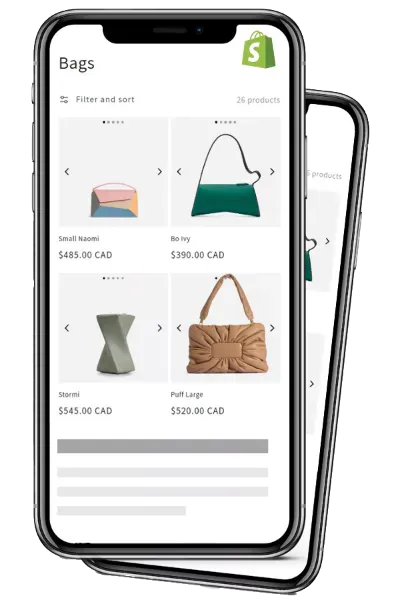
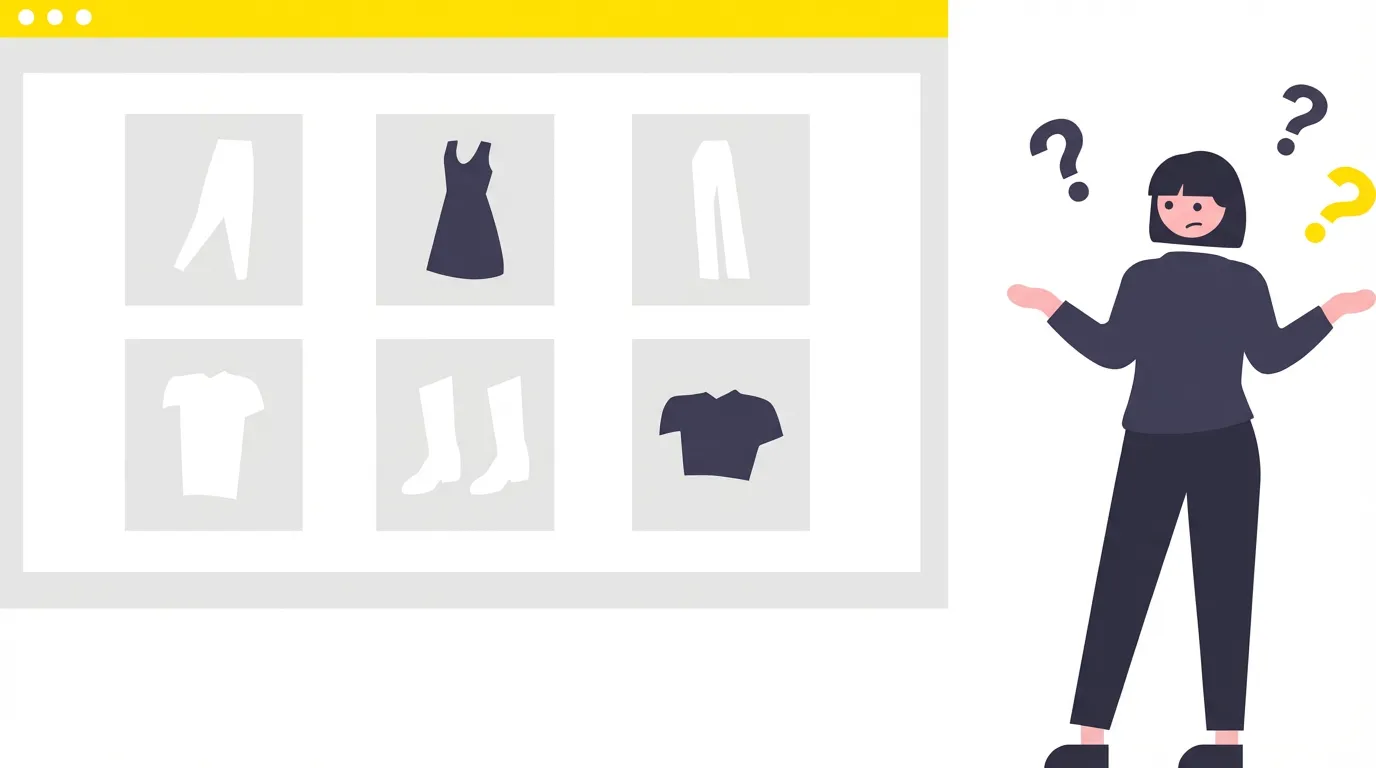
Your Collection Pages Only Show One Image
Most Shopify themes display a single static image per product on collection pages. If a customer wants to see more, they have to click into the product, wait for the page to load, then hit back and repeat. It’s slow. Shopify never changes images on hover by default, so you need an app for that.
This app adds a Shopify hover image slideshow to every product card in your collection grid. Customers can hover, click arrows, tap dots, or swipe to browse through images right there. No need to open each product page.
Browse Product Images on Collection pages
Different stores need different things. Pick the navigation mode that makes sense for your products, and switch anytime from the dashboard.
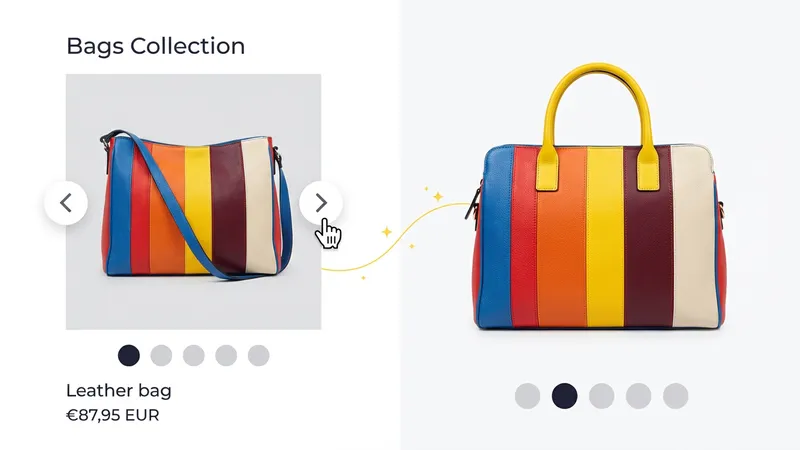
Arrows Click
The most popular mode. Left and right arrows show up on the product card, and customers click through images one by one. On mobile, it switches to swipe gestures automatically.
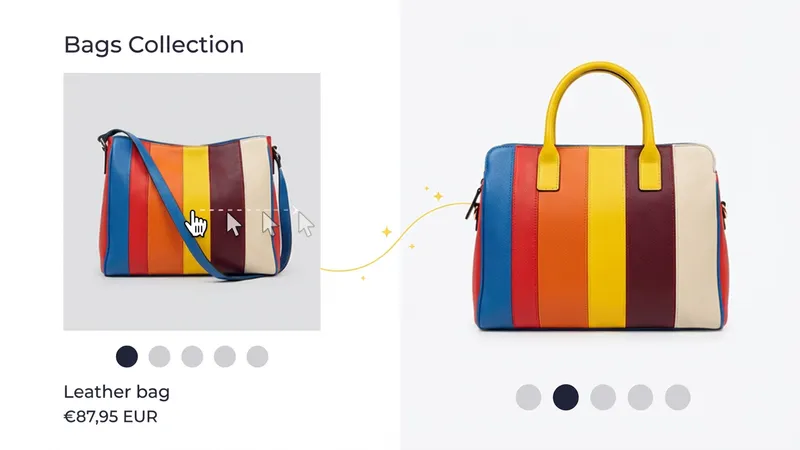
Image Hover
Move your cursor across the product image and the slides advance on their own. The image is split into zones, each one showing a different photo. Customers can see every angle in one pass without clicking anything.
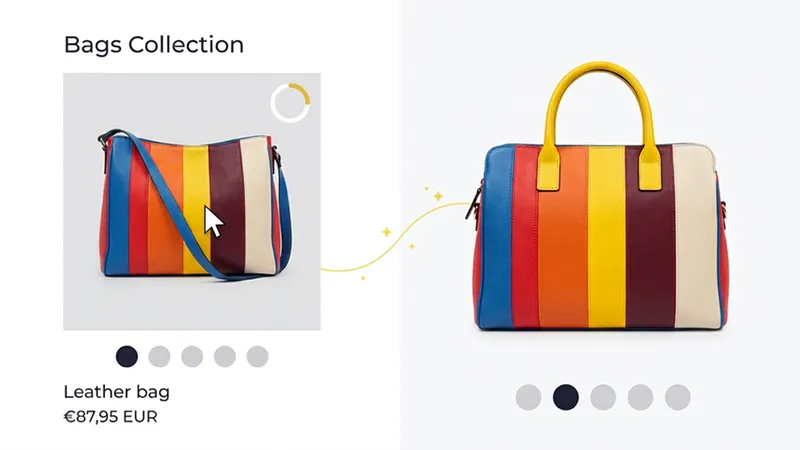
Image Hover Timer
Hover over a product card and the images start cycling after a short delay (configurable). You can set this per product or globally across all products on the page. Good for showing off the full set without any interaction.
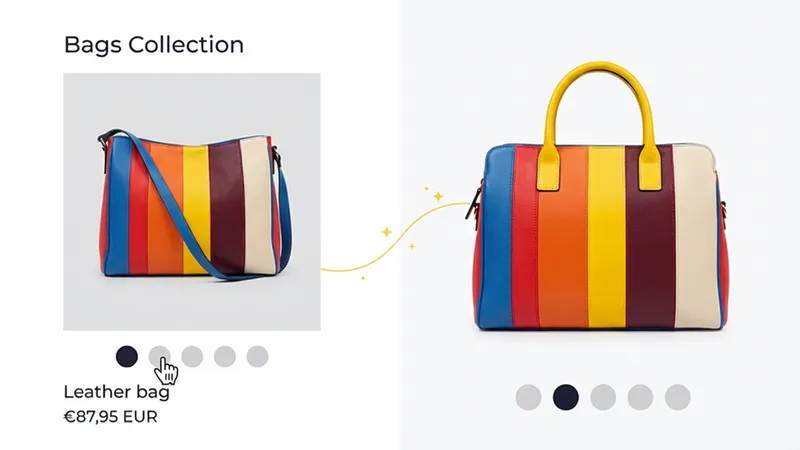
Bullets Click
Dot indicators appear below the product image. Click any dot to jump straight to that slide. Works well when customers want to compare specific angles or colors quickly.
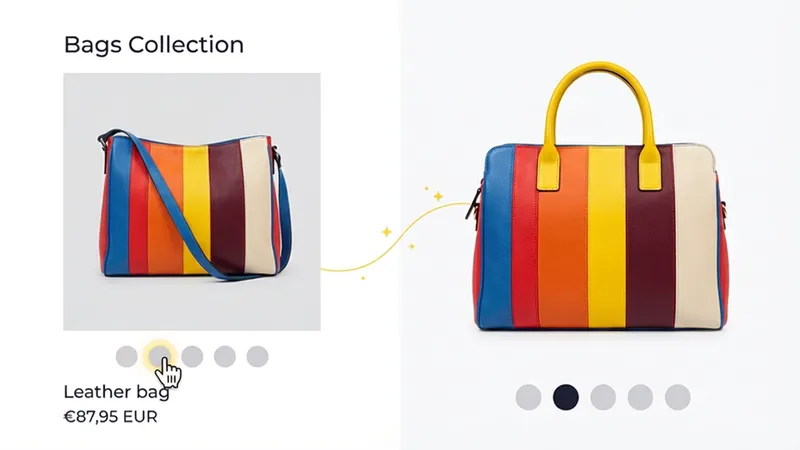
Bullets Hover
Like Bullets Click, but the slide changes when you hover over a dot instead of clicking it. Just move across the dots and preview each image. Fast way to scan through products with lots of photos.
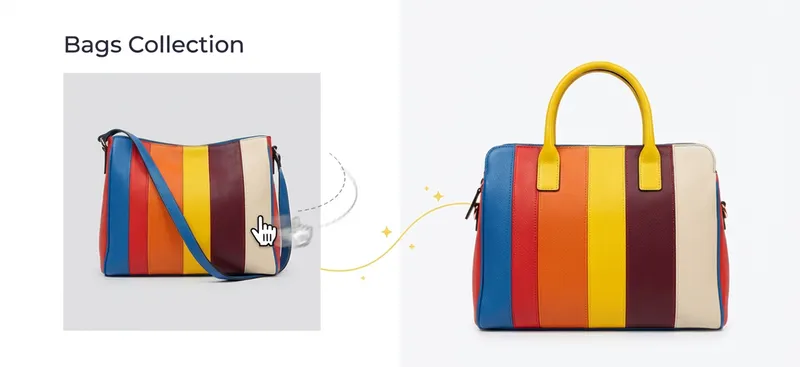
Image Swap
The simplest option. If you just want to show a Shopify second image on hover, this is it. Hover over a product card and the second photo appears. Available on the Basic plan ($1.99/month) without needing the full slider.
Quick View Popup
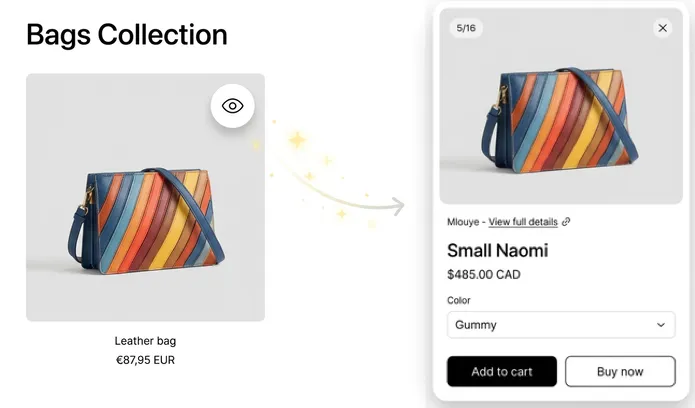
Customers can preview full product details without leaving the collection page. An eye icon shows up on each product card. Click it and a popup opens with the product gallery, pricing, variant selectors, and an Add to Cart button.
After adding something to the cart, the popup can close on its own or stay open. The cart count updates across the page in real time, and the URL changes to the viewed product so customers can share it or use the back button.
Works on Mobile Too
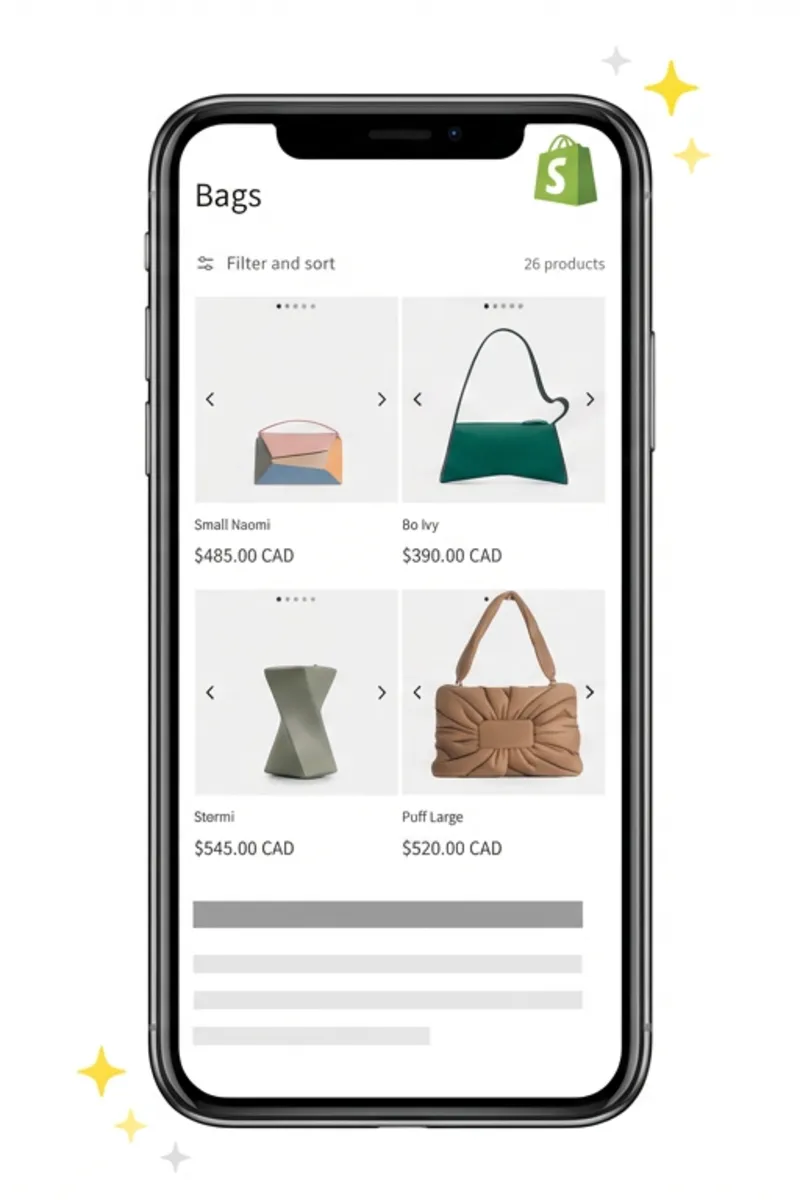
On mobile, the slider switches to swipe gestures automatically. Customers browse product images the same way they scroll through Instagram, so it feels natural right away.
You also get mobile-specific overrides. Want a different navigation mode on phones? Different dot style? Different arrow behavior? You can configure all of that separately. Or just turn the slider off on mobile if that works better for your store.
Make It Look Like Your Store
Everything is configurable from a no-code dashboard with live preview. Change a setting, see the result right away. You can even preview changes on the free plan before subscribing.
-
9 Dot & Bullet Styles
Zoom In, Outline, Fill-in, Minimal, Number, Counter, Stretch, Stretch Half, or hidden. Place them at the top or bottom of the image, pick your colors, and add a drop shadow if you want.
-
4 Arrow Styles
Chevron Floating, Chevron Flat, Chevron Large, or full Arrow. Position them in the middle, bottom, or top of the card. You can also hide the left arrow on the first slide and the right arrow on the last.
-
Color Themes
Full color control for dots, arrows, and backgrounds. Use the hex picker or choose from presets. Transparent backgrounds work too, so the indicators blend right into your design.
-
Show on Hover
Hide dots and arrows until the customer hovers over the product card. Keeps collection pages clean. On mobile, they stay visible since hover isn't an option there.
-
Slide Limits
Control how many images to show per product, from 2 to 10. Useful if your products have lots of photos but you only want to feature the best ones on the collection page.
-
Device Controls
Turn the slider off on mobile or desktop independently. Or keep it on everywhere but with different settings per device. Smooth slide transitions can be toggled on or off.
Show Variant Images on Collection Pages
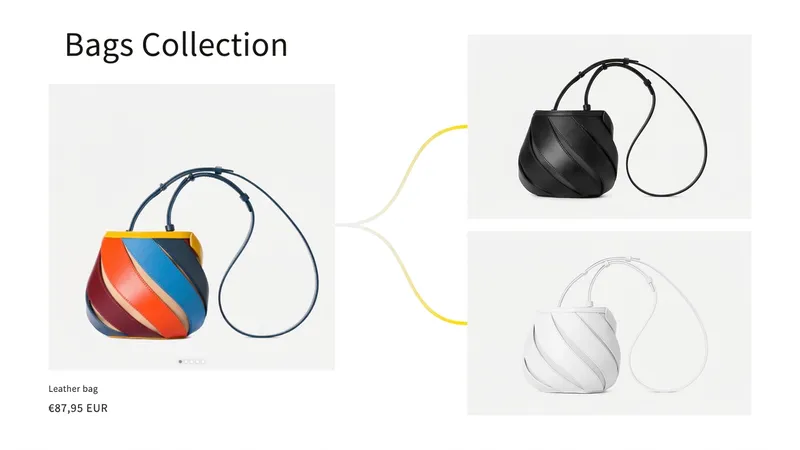
If you sell products in multiple colors or styles, customers can see those variants right on the collection grid. No need to click into the product page.
The app filters images by variant, so the slider only shows photos that match the selected option. You can show only variant images, put variant images first, or filter to a specific variant.
What People Are Saying
Awesome app and just what we were looking for. We really needed a way to showcase a second image on our collection page. The developers quickly worked with us to make it compatible with our theme. Works great thank you so much.
Great app if your product listings are very rich in media. Install this app so your website visitors can experience ALL of your media, not just your main image. Super fast and helpful support ain't that bad either!
The feature of the product is simple but adds a lot of value by showing a slideshow on the collection page. Very well-designed, fair priced and great customer support, highly recommend.
Highly recommend this app! I purchased this so I could have a product image carousal on my collection page, it works perfectly and gives my store the lift it needed. Absolutely wonderful service and great app!
* All reviews are verified and visible on the Shopify App Store.
Set It Up in a Few Minutes
No coding needed. Install from the Shopify admin and you’re good to go.
Set up the hover image slider on your Shopify collection pages in three steps.
- Install from the Shopify App Store: Go to the Shopify App Store, find Collection Hover Image Slider, and click Install. It connects to your store automatically.
- Turn it on in App Embeds: In your Shopify admin, go to Online Store > Themes > Customize. Open App Embeds and toggle on the Hover Image Slider. That activates it on your live theme.
- Pick a mode and customize: Open the app dashboard, choose a navigation mode (Arrows Click, Image Hover, Bullets, or Image Swap), and adjust the dot styles, arrow styles, and colors. You can preview every change live before publishing.
Pricing Plans

Frequently Asked Questions
- How do I make product images change on hover in Shopify?
- Install Collection Hover Image Slider from the Shopify App Store, activate it in App Embeds, and pick a navigation mode. The app adds hover effects, arrows, and swipe gestures to your collection page product cards automatically. No code needed.
- How do I show a second product image on hover in Shopify?
- Use the Image Swap mode. It shows the second product image when someone hovers over the product card. This is on the Basic plan at $1.99/month. If you want a full multi-image slider with arrows and dots, the PRO plan has that.
- How many images can I show per product on the collection page?
- Up to 10 images per product card. You can set the exact number in the dashboard, so if a product has 20 photos you can limit the slider to just the best ones.
- Can I use the slider on some products but not others?
- Yes. You can tag products to include or exclude them from the slider. For example, add a tag to products you want to skip, and the app ignores them. The filter tag is customizable from the dashboard.
- My theme already has a second-image-on-hover effect. Will there be a conflict?
- Some themes (like Dawn) have a built-in hover effect. You'll need to turn that off before enabling the app. In your theme editor, look for a 'Show second image on hover' toggle and disable it.
- Does the Quick View popup work with third-party cart apps?
- Yes. It adds products to cart through Shopify's cart API and is compatible with popular cart apps like Slide Cart. The cart count updates across the page in real time after adding an item.
- Does this work with my Shopify theme?
- It works with all Shopify Online Store 2.0 themes through App Embeds. The app detects your theme and adjusts styling automatically. If something doesn't look right, our support team can help.
- What's the difference between the Basic and PRO plans?
- Basic ($1.99/month) gives you the Image Swap mode, which shows the second product image on hover. PRO ($5.99/month) unlocks all 6 navigation modes, Quick View popup, variant image filtering, full customization of dots, arrows, and colors, plus mobile-specific overrides. Both plans include a 7-day free trial.
- Can I add a slider to other parts of my store?
- This app is built specifically for collection pages. Some Shopify themes include basic sliders on other pages out of the box, and there are other apps for different sections. If you need a slider for your product page gallery, check out our Product Page Image Slider. For broader product page best practices that go beyond the gallery, see our Shopify product page optimization guide.