
Install with PageFly - Shopify Product Page Slider
Before following this guide make sure the App Embed is activated
See the App Embed Activation guide.
Step 1: Open the Product Page in PageFly editor
Or create a new one from a template
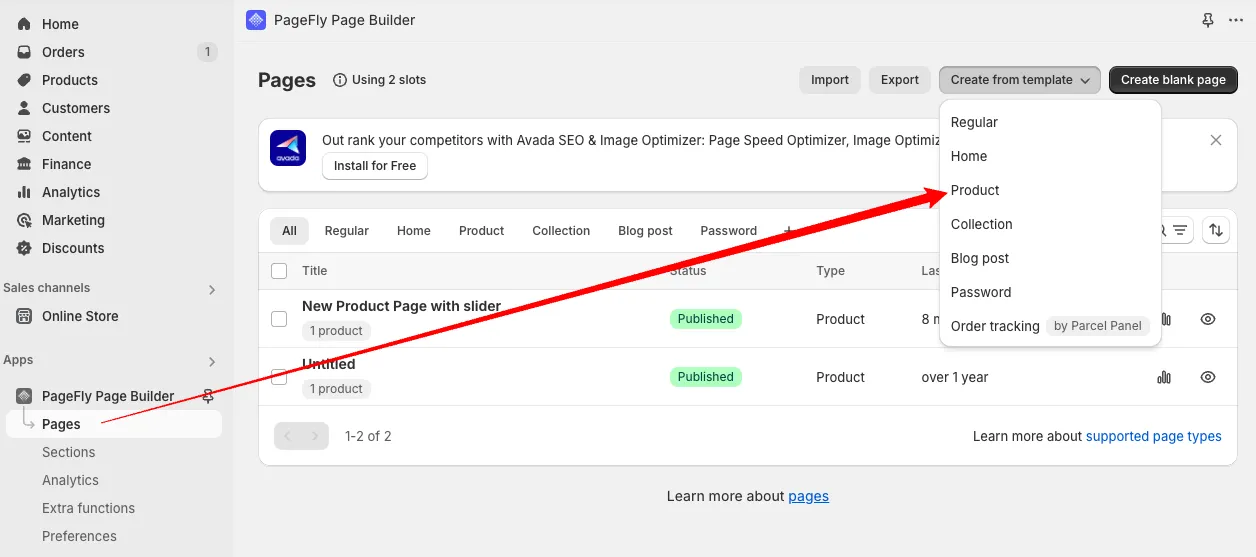
Step 2: Remove default gallery section
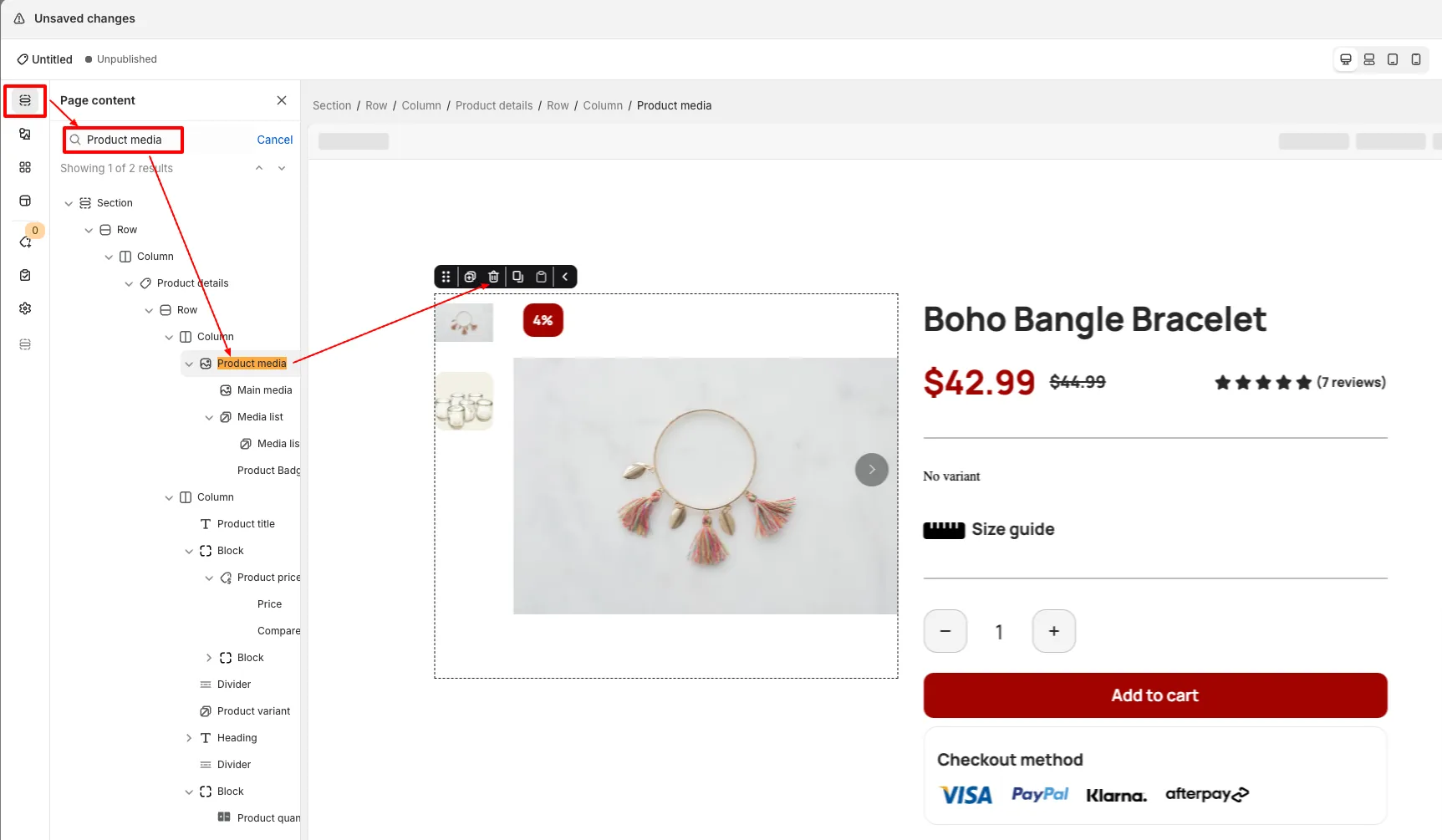
Now we need to remove the old gallery that was added to the Product Page by default. You can skip this if you are building a new page from scratch.
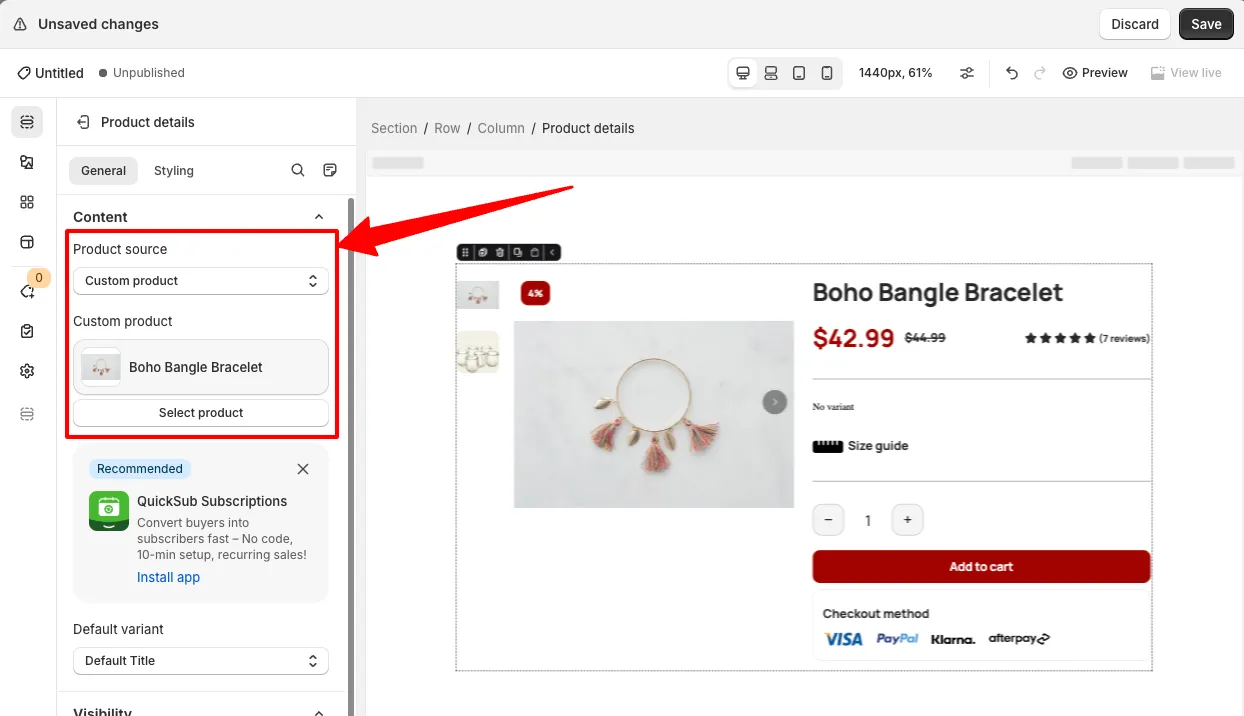
If you have just created a new page — make sure to select a product to see the product details in the editor:
Now search for the Product media element and remove it:
Step 3: Add GG Product Page element
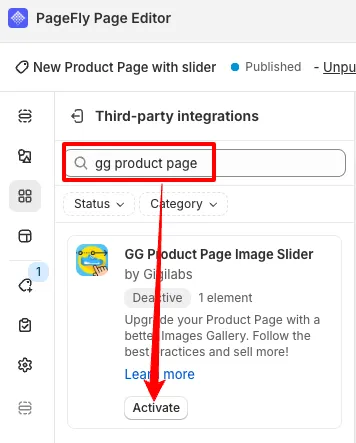
Find the app in the Third-party elements tab and activate it:
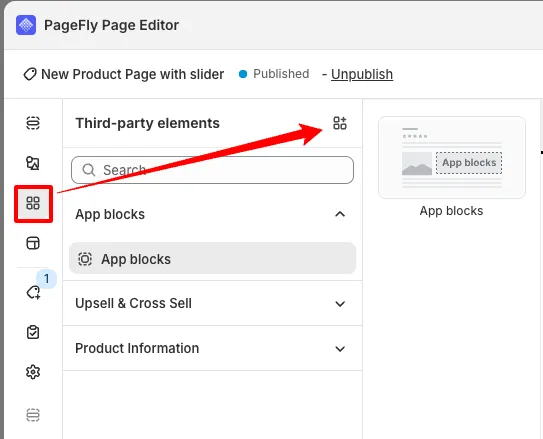
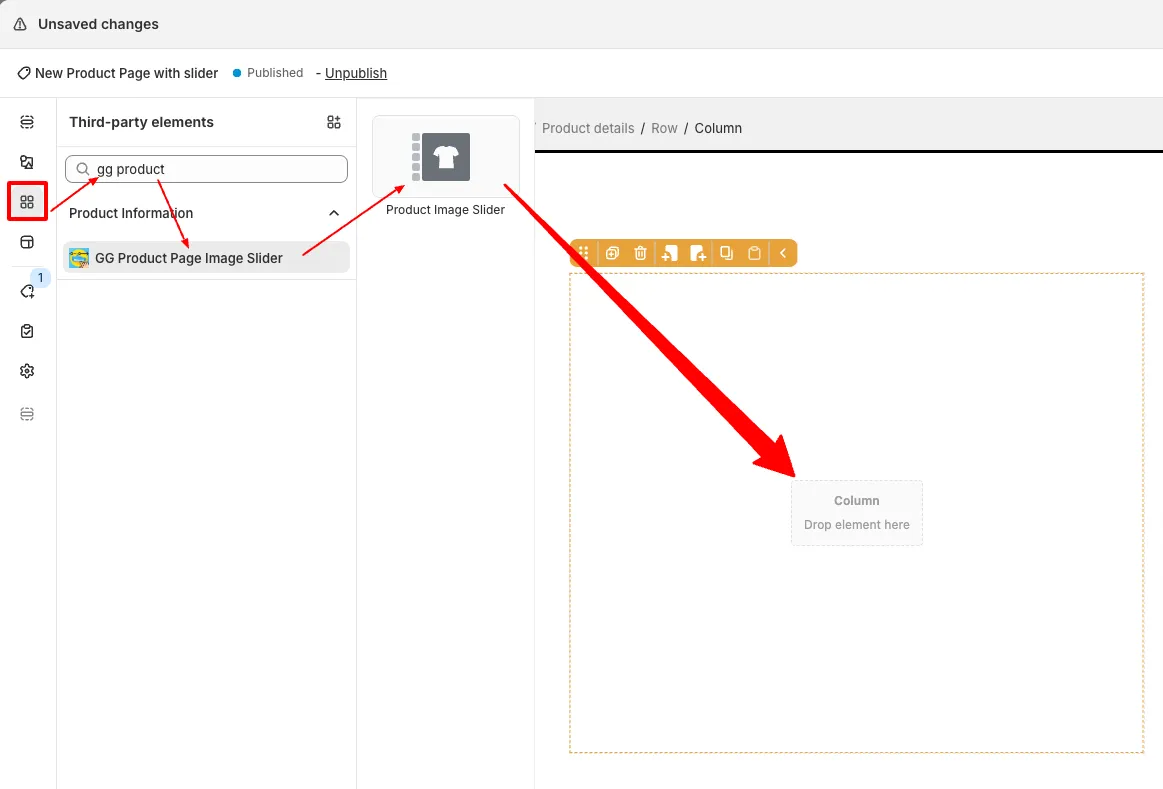
After activating it you can find the element and add it to the page:
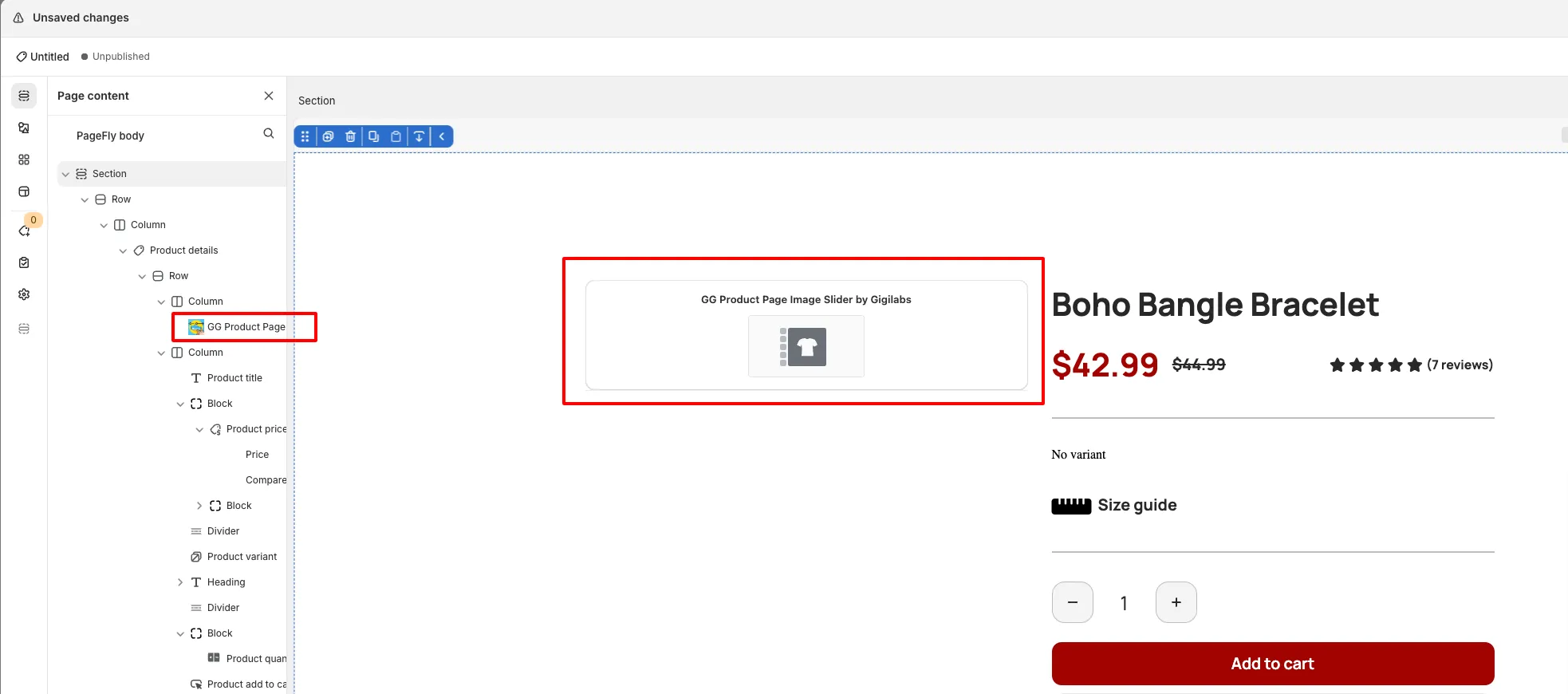
You should see the GG Product Page Image Slider element on your page now:
Step 4: Publish the changes
Save and publish the changes in PageFly editor.
Step 5: Enable the App
Make sure the App is enabled on the Configuration page. And the App Embed is activated for the right theme.
Step 6: Check the result
Now you should see the Slider live on your store: